Getting started
LifeO keeps every part of your life in one place: tasks, calendar, habits, goals, money, health, people and more. Every page shares the same layout, so once you know one, you know them all.
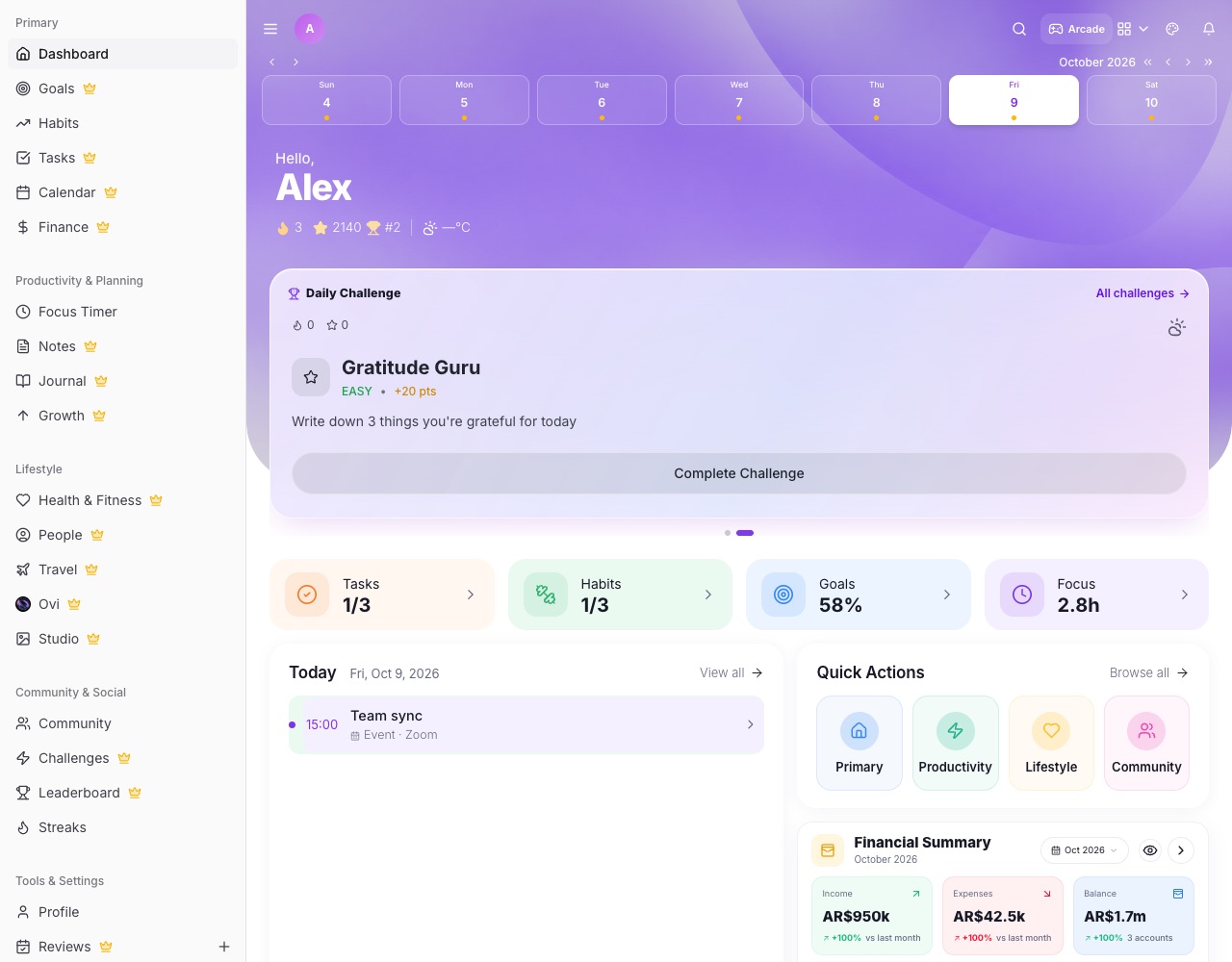
The layout of every page
- Profile bar At the top of every page: your photo (tap it for your accounts, switching and sign out), search, the app switcher, themes and notifications.
- Week strip Under the profile bar. Tap a day to see that day on pages that follow dates, such as Tasks, Calendar and Habits.
- Hero card The coloured card at the top of each page sums the page up and holds its main action, such as Add Habit or Write an entry. On a computer, a side card next to it shows the most useful list (Up next, Top habits and so on).
Moving around
- On a computer The sidebar on the left lists every page, grouped into Primary, Productivity & Planning, Lifestyle, Community & Social and Tools & Settings. The ☰ button hides or shows it.
- On a phone The bottom bar has Home, Tasks, Finance, Calendar and More. More opens every other tool. The ☰ in the profile bar opens the full page list.
- Search The magnifying glass in the profile bar jumps to any page or tool by name.
Make it yours
- Themes The palette icon in the profile bar changes the colour of the hero backdrops across the app. Light and dark mode follow your device, or set them in Personalization.
- The app tour Take the short tour again any time from the Help Center hero.